

A domain redirect, also known as URL forwarding, is a technique used in web management where a web page is made available under multiple URLs. When a web browser opens a URL that has been redirected, another page with a different URL is opened instead. Anyone who types in or clicks on the original URL will be automatically taken to a new page or site.
You can use a redirect to send website visitors from one domain or webpage to another. For example, you could set up a redirect that automatically takes users from www.example.com to www.example.info. Redirecting a domain in cPanel might be helpful if you want to temporarily shut down a website or point users to another website address.
Table of Contents
There may be times that you need to redirect traffic from one domain to another. For example, you may need to route all traffic from example.com to example.net. You can also redirect specific pages, such as example.com/info.html to example.net/anotherPage.html. This can easily be accomplished in your cPanel. Alternately, you can edit your .htaccess file directly if you want to custom-code the redirect rules.
Why Do You Need to Domain Redirect?
These are the common reasons why you’d want to redirect your domain:
- Consolidating Domains: If you own multiple domain names related to your brand, you can redirect all of them to a single primary website. This ensures that potential visitors reach your site regardless of which domain they enter.
- Rebranding: If you want to change your business’s name or brand, domain redirects can be used to guide users from the old site domain to the new one, maintaining traffic and SEO value.
- Simplifying URLs: For marketing purposes, a long and complex URL can be redirected to a shorter, more memorable one. This is especially handy for print ads or social media.
- Tracking and Analytics: Redirects can be used to track the effectiveness of marketing campaigns by directing users through URLs that log visits before forwarding them to the final page.
- Maintaining SEO: Properly implemented redirects can help preserve search engine rankings by directing search engines from an old page to a relevant new page. This transfers the SEO history and link equity to the new one.
How to set Domain Redirect in cPanel
- Log in to cPanel using Username & Password. i.e; (https://yourdomain.com:2083 or https://yourdomain.com/cpanel)https://yourdomain.com/cpanel)

- Within cPanel, click the Redirects icon under the Domains section

- From the Type dropdown menu, select your preferred type of redirect.
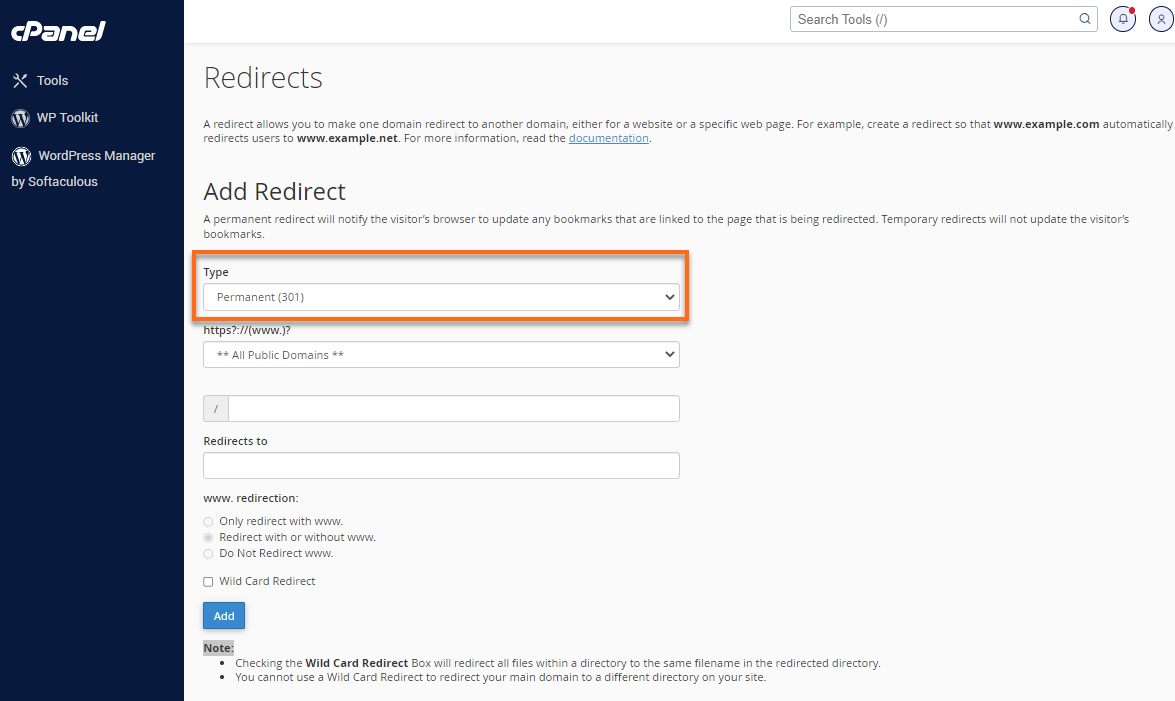
Permanent 301 is a redirect that will update the visitor’s bookmarks and direct search engines to the new site.
Temporary 302 is a redirect that will redirect the visitor or search engine but will not update the bookmark, and search engines will continue to index to the original page. - From the https?://(www.)? dropdown menu, choose the domain name you would like to redirect.
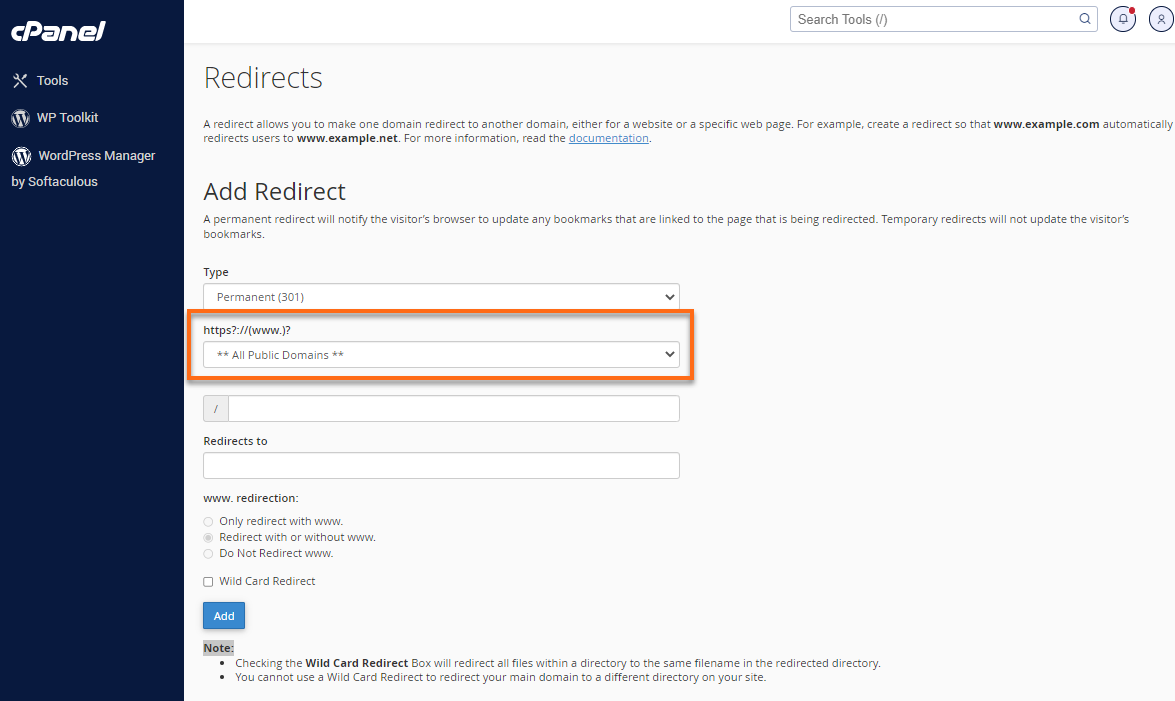
- If you want to redirect a single page or directory, you can use the text field that begins with the forward-slash (/) to enter the folder or file name.
- If you want to redirect a single page or directory, you can use the text field that begins with the forward-slash (/) to enter the folder or file name.
- In the Redirects To field, enter the full URL of the page you will be redirecting.
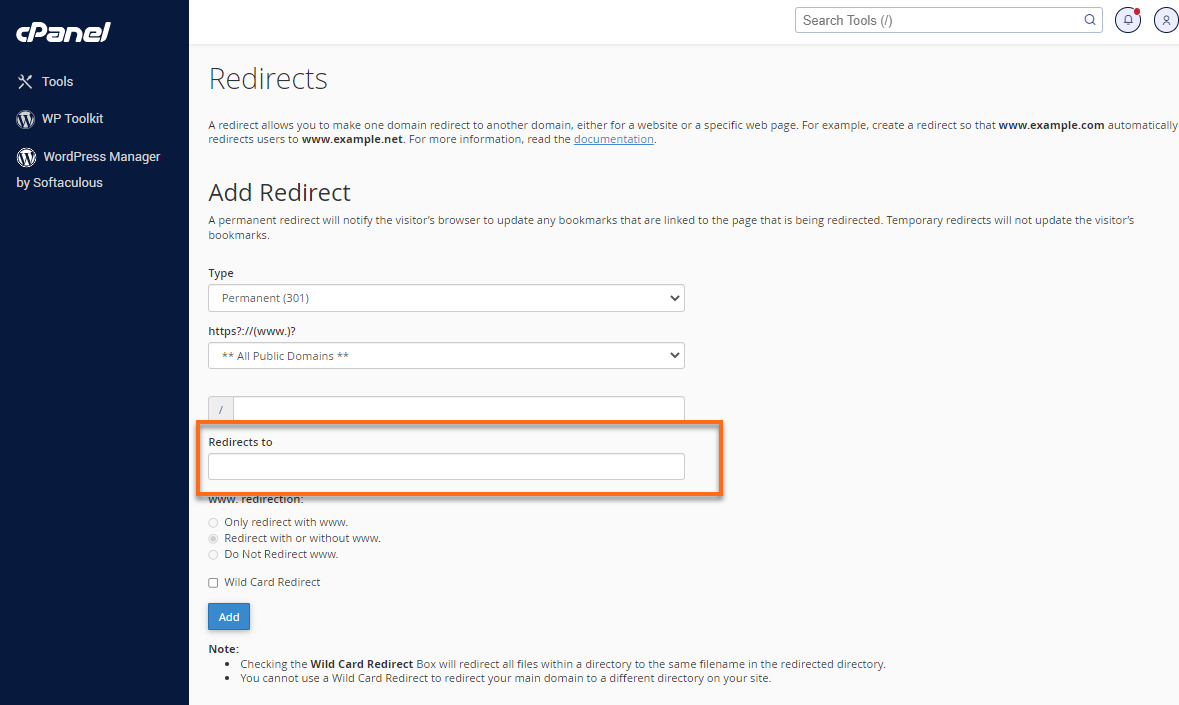 You must enter the protocol (for example, https://, http://, or ftp://) for the domain URL to be accepted.
 - Select one of the following www. redirection options to dictate whether or not the domain will be redirecting:

- Only redirect with www. will only redirect visitors that type www. as part of the URL.
- Redirect with or without www. will redirect all visitors regardless of whether they use www. or not.
- Do Not Redirect www. will not redirect visitors that use www. as part of the URL.
- Clicking the Wild Card Redirect option allows users to set up a redirect to the same file on a new destination.
- With Wild Card Redirect, “www.example.com/about.html” will redirect to “www.example-destination.com/about.html.”
- Without Wild Card Redirect, “www.example.com/about.html” will redirect to “www.example-destination.com.”
- Click Add to create the redirect as specified.
When visitors type the exact URL you specified, domain redirected to your assigned target site.
Conclusion
Use this guide to set up domain redirects in cPanel. Your traffic will redirect as you instruct, allowing you to send traffic away from one domain and send it to another.
Get cPanel on domainregistrationindia’s Web Hosting, VPS Hosting, and Dedicated Servers. Contact our sales team for more information on getting set up.

